Usage
Some Olympus cameras have wifi capability. Photos can be downloaded from them; they can also remote control the camera: the live camera picture is transmitted and they take pictures and modify settings via wifi.
This package provides Python code to connect to a wifi-enabled Olympus camera, set the camera’s date and time, download images, watch the live camera view in a window, take a picture, change camera settings, and turn off the camera. In addition, command-line arguments allow to send user-specific commands to the camera.
Connect Camera to Wifi
The best way to find out how to enter WiFi mode for a particular Olympus camera is to check the manual. In general, wifi needs to be enabled in the camera settings and set to “private”. Then, to enter WiFi mode on a TG-5 press and hold the “Menu” button. In addition to a QR code, the camera display will show its SSID (wireless network name) and password. The computer must be connected to the camera’s wireless network using this password. This may require disconnecting from the wireless network to which the computer is initially connected.
It is important to use a browser to verify that the camera is actually connected: The camera will respond to http://192.168.0.10/DCIM with a web page. If the browser does not display this camera web page, the camera is not yet connected and the software in this package will not work. The Olympus Photosync repository contains more detailed instructions and images on connecting the camera to a computer.
Installation
Package olympuswifi provides utilities olympus-camera, olympus-liveview, olympus-download, and olympus-log2gpx, runs on Python 3.7 or higher and can be installed with pip.
$ pip install olympuswifi
The only dependencies are packages Pillow and requests. They could be installed automatically with pip as shown above. On Ubuntu and probably many other Debian-style Linux distributions these dependencies can be installed system-wide with command:
$ sudo apt install python3-pip python3-tk python3-pil python3-pil.imagetk python3-requests
$ pip install olympuswifi
Utility olympus-camera
Several of the scripts can be called. The script olympus-camera offers the most functionality in a single script. Others have mainly a subset of its functionality.
$ olympus-camera -h
usage: olympus-camera [-h] [--output OUTPUT] [--download] [--power_off] [--set_clock] [--shoot] [--liveview] [--port PORT] [--cmd CMD [CMD ...]]

options:
  -h, --help            show this help message and exit
  --output OUTPUT, -o OUTPUT
                        Local directory for downloaded photos.
  --download, -d        Download photos from camera.
  --power_off, -p       Turn camera off.
  --set_clock, -c       Set camera clock to current time.
  --shoot, -S           Take a picture.
  --liveview, -L        Show live camera stream. Close the live view window to quit. This script will run a few more seconds, then exit.
  --port PORT, -P PORT  UPD port for liveview (default: 40000).
  --cmd CMD [CMD ...], -C CMD [CMD ...]
                        Command to send to camera; multiple commands are supported.
- download
The options -d and –download download the images from the camera. Instead of calling olympus-camera with option –download, download can be started directly by calling script olympus-download.
- output
The options -o and –output specify the output directory for image downloads. Without these options, images will be downloaded to ~/Pictures/YEAR where YEAR is the year the picture was taken.
- power_off
The options -p and –power_off turn the camera off after executing the other commands.
- set_clock
The options -c and –set_clock set the camera clock to the current date and time.
- shoot
The options -S and –shoot make the camera take a picture.
- liveview
The options -L and –leveview open a window and display the live view of the camera. Menus allow to take a photo, select the resolution of the photo stream and adjust all camera properties.
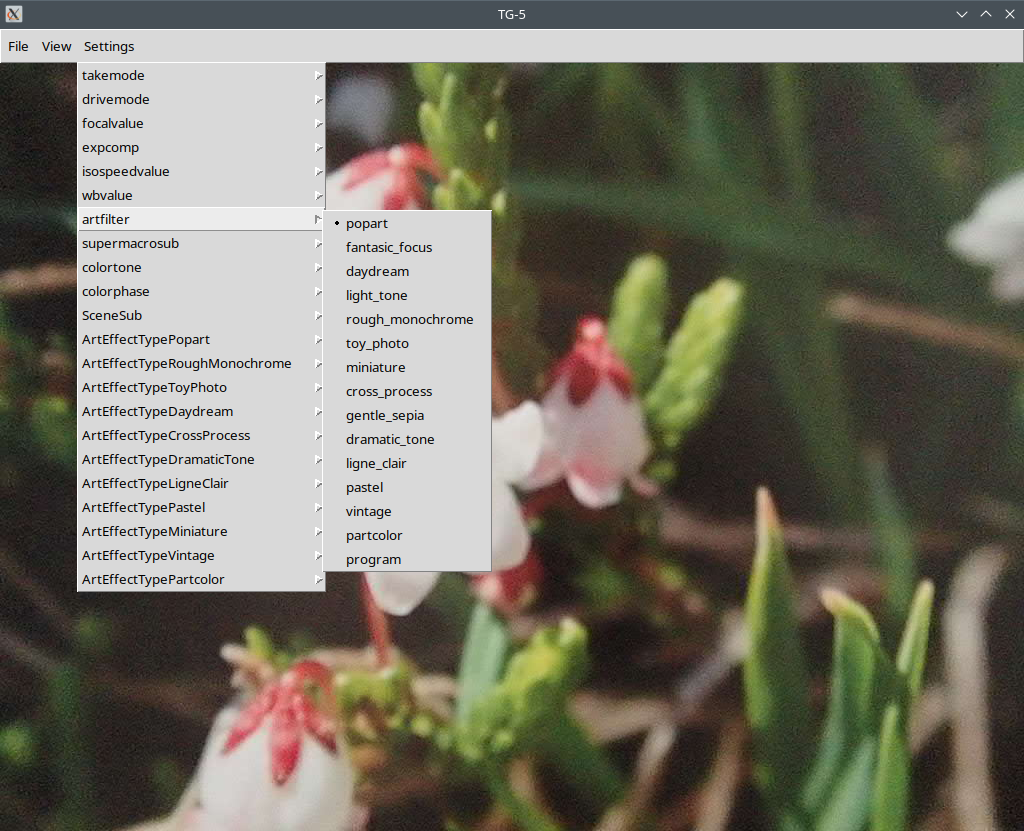
Instead of running olympus-camera with the –liveview option, the live view can be started directly by calling script olympus-liveview.
The live view window may not open on Windows. This happens when the Windows Firewall is blocking Python from receiving the live view stream. In this case open the firewall settings and allow Python network access.
- cmd
The options -C and –cmd allow to send commands directly to the camera. Multiple options are often needed because most commands work only in certain modes and the first command usually switches the mode. Arbitrary commands can be sent to the camera in this way. To get started with camera commands, this spec might be helpful. It explains a lot though not all its information applies to all camera models.
Sending Camera Commands
The commands and command options supported by the connected camera can be obtained as follows:
$ olympus-camera --cmd get_commandlist
- Command with output redirection
The command returns a list of all the supported commands and options in the form of an XML document. This long document can be saved to a file with redirection:
$ olympus-camera --cmd "get_commandlist > commandlist.xml"
- Commands return XML results
This command returns the date on which the AGPS data expires:
$ olympus-camera --cmd get_agpsinfo
Connected to Olympus TG-5, version 3.10, oitrackversion 2.20.
<?xml version="1.0"?>
<response>
<modulemaker>3</modulemaker>
<expiredate>20221111</expiredate>
</response>
The data returned is often XML. In this case, the camera’s AGPS data is due for an update by November 11th, 2022.
- Commands return XML results
Images on the camera can also be listed:
$ olympus-camera --cmd "get_imglist DIR=/DCIM/100OLYMP"
Connected to Olympus TG-5, version 3.10, oitrackversion 2.20.
VER_100
/DCIM/100OLYMP,PA220001.JPG,2514746,0,21846,43106
There is only one image. It is PA220001.JPG in the directory /DCIM/100OLYMP. The image is a file of 2,514,746 bytes. Note that this command returns a plain text result. get_imglist is one of only a few commands commands that return plain text instead of XML.
- Command with binary result
We want to download a smaller version of the image using the get_resizeimg command:
$ olympus-camera --cmd "get_resizeimg DIR=/DCIM/100OLYMP/PA220001.JPG size=1024"
Connected to Olympus TG-5, version 3.10, oitrackversion 2.20.
Command 'get_resizeimg DIR=/DCIM/100OLYMP/PA220001.JPG size=1024' returned 195,186 bytes of image/jpeg. Re-run with redirection to obtain data.
While olympus-camera prints all the output of the command get_commandlist above, it does not write binary data to the terminal. We need to re-run this command with redirection
$ olympus-camera --cmd "get_resizeimg DIR=/DCIM/100OLYMP/PA220001.JPG size=1024 > pa220001_resized.jpg"
Connected to Olympus TG-5, version 3.10, oitrackversion 2.20.
and the image is downloaded and saved to a file.
- Command restricted to a particular mode
The TG-5 has 3 modes: play, rec, and shutter. Many commands are only accepted in one of the modes. The switch_cammode command is used to switch between modes.
$ olympus-camera --cmd "get_camprop com=get propname=takemode"
Connected to Olympus TG-5, version 3.10, oitrackversion 2.20.
Error #520 for url 'http://192.168.0.10/get_camprop.cgi?com=get&propname=takemode': errorcode=1001.
ErrorCode 1001 appears to indicate that the camera is in the wrong mode. We will set the mode to rec and try again:
$ olympus-camera --cmd "switch_cammode mode=rec" "get_camprop com=get propname=takemode"
Connected to Olympus TG-5, version 3.10, oitrackversion 2.20.
<?xml version="1.0"?><get><value>iAuto</value></get>
The command fails no longer and we get the result.
- Command argument check
The –cmd option checks commands and arguments before sending them to the camera. These checks are based on the data retrieved with get_commandlist. If an argument is wrong, the error message includes a list of valid arguments:
$ olympus-camera --cmd "switch_cammode mode=rec" "get_camprop com=get propname=whatever"Connected to Olympus TG-5, version 3.10, oitrackversion 2.20.
Error in get_camprop: 'whatever' in propname=whatever not supported; supported: propname=touchactiveframe, propname=takemode, propname=drivemode,
propname=focalvalue, propname=expcomp, propname=isospeedvalue, propname=wbvalue, propname=artfilter, propname=supermacrosub, propname=supermacrozoom,
propname=colortone, propname=cameradrivemode, propname=colorphase, propname=SceneSub, propname=ArtEffectTypePopart, propname=ArtEffectTypeRoughMonochrome,
propname=ArtEffectTypeToyPhoto, propname=ArtEffectTypeDaydream, propname=ArtEffectTypeCrossProcess, propname=ArtEffectTypeDramaticTone,
propname=ArtEffectTypeLigneClair, propname=ArtEffectTypePastel, propname=ArtEffectTypeMiniature, propname=ArtEffectTypeVintage, propname=ArtEffectTypePartcolor.
- Command name check
These checks also work for commands:
$ olympus-camera --cmd whatever
Connected to Olympus TG-5, version 3.10, oitrackversion 2.20.
Error: command 'whatever' not supported; valid commands: get_commandlist, get_connectmode, switch_cammode, get_caminfo, exec_pwoff, get_resizeimg,
get_movplaytime, clear_resvflg, get_rsvimglist, get_rsvimglist_ext, get_imglist, get_imglist_ext, get_thumbnail, get_screennail, get_movfileinfo,
exec_takemotion, exec_takemisc, get_camprop, set_camprop, get_activate, set_utctimediff, get_gpsdivunit, get_unusedcapacity, get_dcffilenum, req_attachexifgps,
req_storegpsinfo, exec_shutter, get_agpsinfo, send_agpsassistdata, update_agpsassistdata, check_gpsrecording, check_mountmedia, get_gpsloglist,
get_gpsimglist, get_gpsrecordinglog, exec_gpslogfiling, check_snsrecording, get_snsloglist, get_gpssnsimglist, get_snsrecordinglog,
exec_snslogfiling, exec_gpssnslogfiling, get_moviestreaminfo, ready_moviestream, start_moviestream, stop_moviestream, exit_moviestream.
Your output may vary. The commands and command arguments vary from camera model to camera model.